
Display an “Overwrite confirmation” message when uploading a file with the same name
This feature is available starting with version 16.0.0.
By default, if you upload a file with the same name as one already stored in the space, the file will be automatically overwritten (updated).
The file will not be automatically saved under a different name.
[Example: The file is updated automatically.]
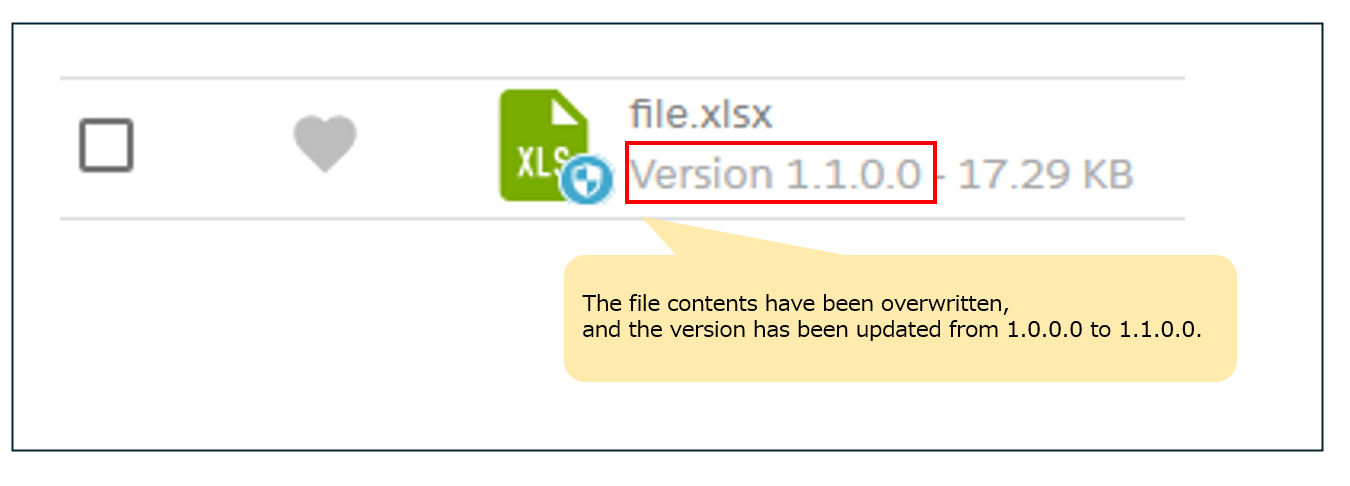
To prevent unintended version updates, you can configure the system to display an “confirm overwrite ” message when a file with the same name is uploaded.
Settings > Organization > Common Settings > Confirm overwrite when uploading a file> Click the pencil icon in the lower-right corner
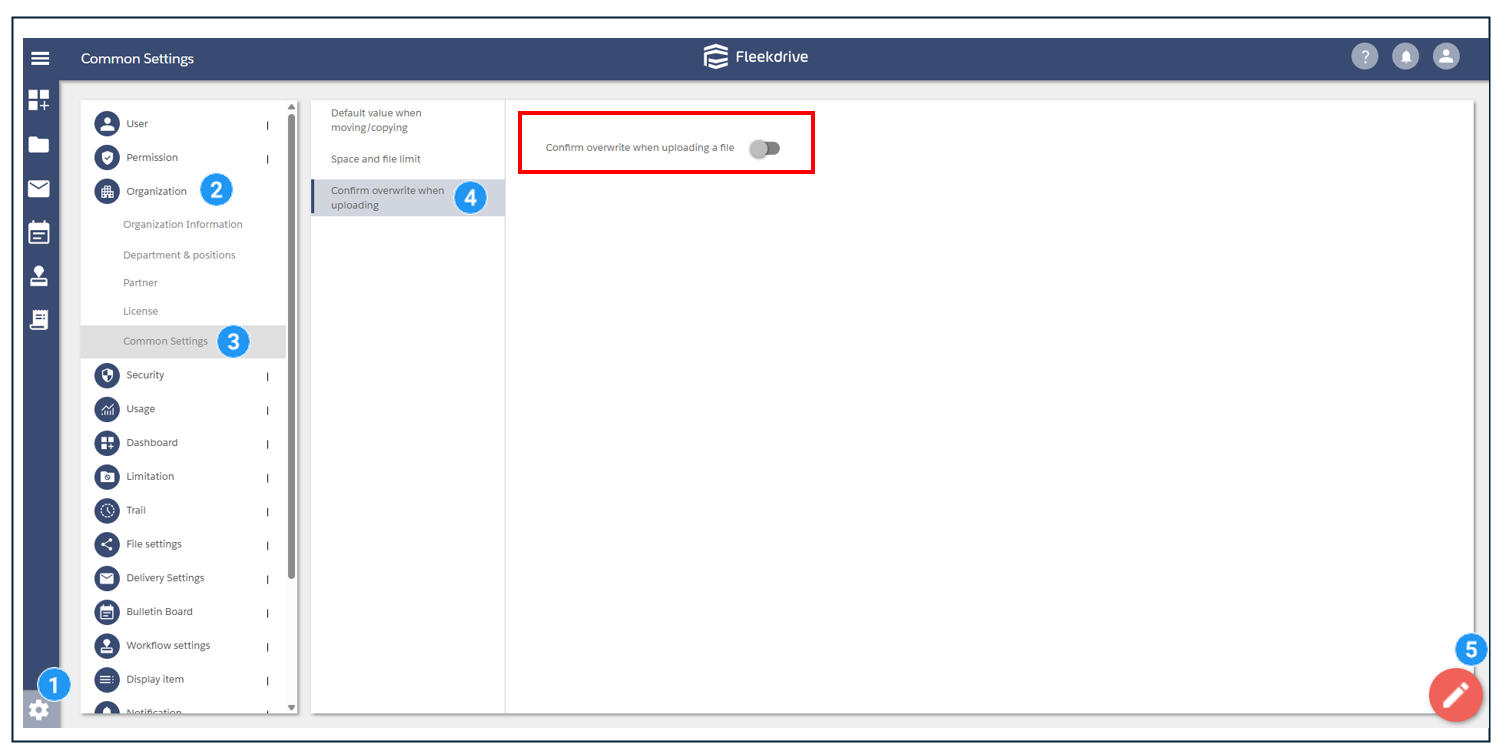
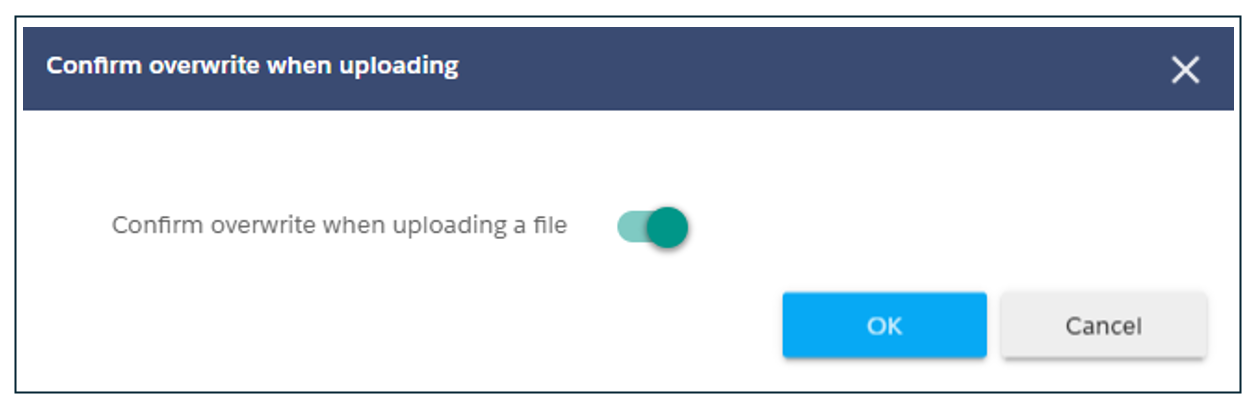
Set the [Confirm overwrite when uploading a file] switch to [On], then click the [OK] button to save.
After following these steps, a message asking for confirmation will appear whenever a file with the same name is uploaded.
After setting the [Confirm overwrite when uploading a file] toggle to [On] in the section above titled [1. How to display the “Confirm Overwrite” message during upload.]if a file with the same name already exists in the destination space when you upload a file,
the “Upload Overwrite Confirmation” message will appear, stating: “A file with the same name already exists. Would you like to overwrite (Version up) the file with the same name?”

[Overwrite]
The file will be overwritten with the contents of the newly uploaded file with the same name.
The version number will also be updated.
[Overwrite and continue]
Files will not be overwritten,
and any files with the same name that you attempt to upload will not be uploaded.
Last Updated : 23 Mar 2026