
【Authentication by authenticator app】Login procedure when using Two-factor authentication
In addition to user ID and password authentication, you can now use “two-step verification” via an authenticator app.
To start using two-step verification with an authenticator app, prior setup is required on both the “authentication device (smartphone or tablet)” and the “Fleekdrive side.”
This manual provides instructions on 【How to Set Up Your Authentication Device】.
For settings on the 【Fleekdrive Side】, please refer to this page.
[Available Authenticator Apps]
・Google Authenticator
・Microsoft Authenticator
among others
[How to Set Up]
1) Enter your user ID and password on the Fleekdrive login (authentication) screen, then click the “Log In” button.
2) Once you are redirected to the “Set up authenticator app” screen, scan the QR code using your authentication device.
If you cannot scan the QR code, enter the “Authenticator app secret key” in field A shown below.
3) Enter the [6-digit code] displayed in your app after scanning the QR code or entering the secret key.
4) Click the “OK” button.
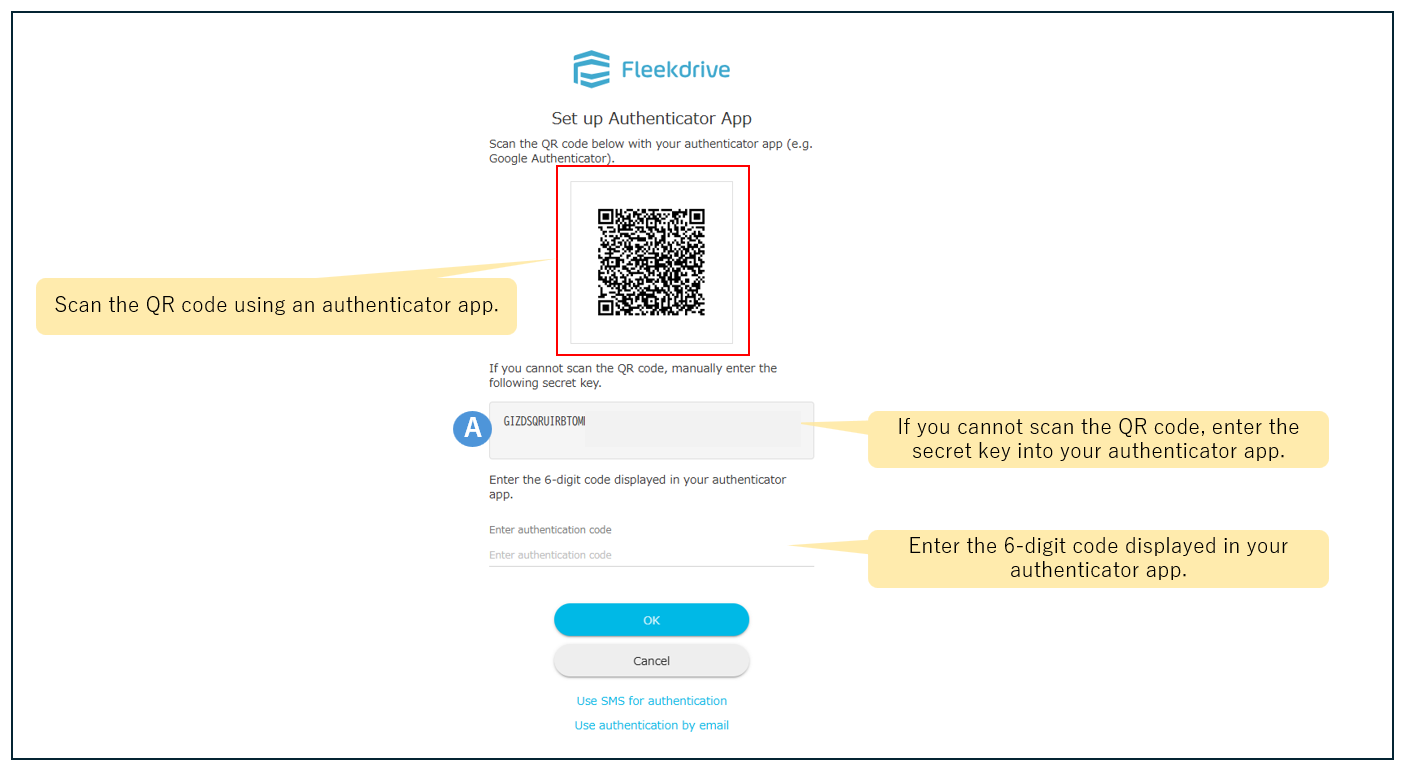
Enter your login credentials (user ID and password), then click the “Log In” button.
Once you are redirected to the verification screen for the authenticator app, enter the [6-digit verification code] displayed in the app.
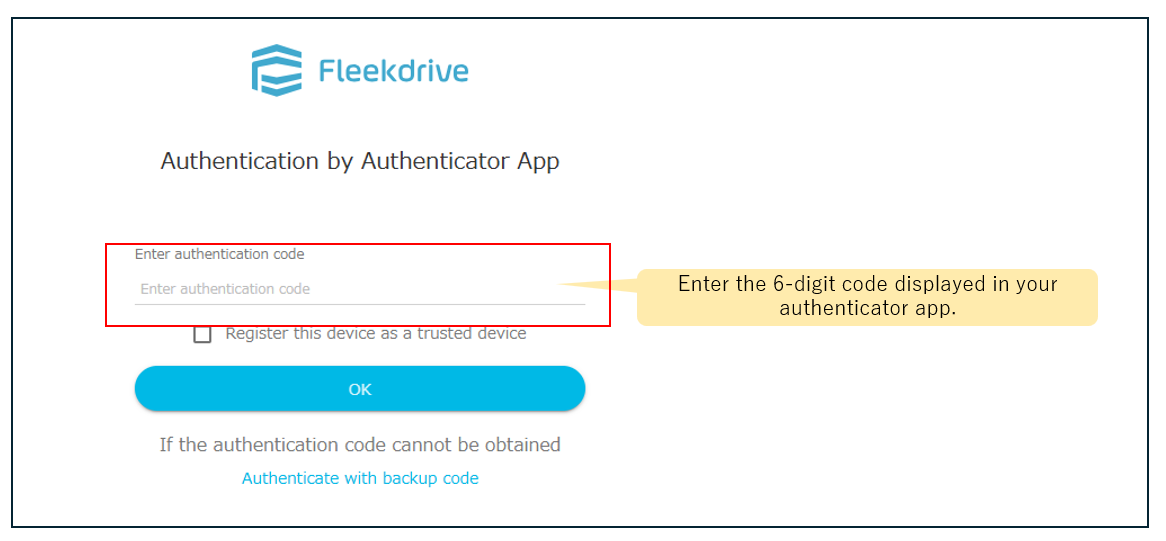
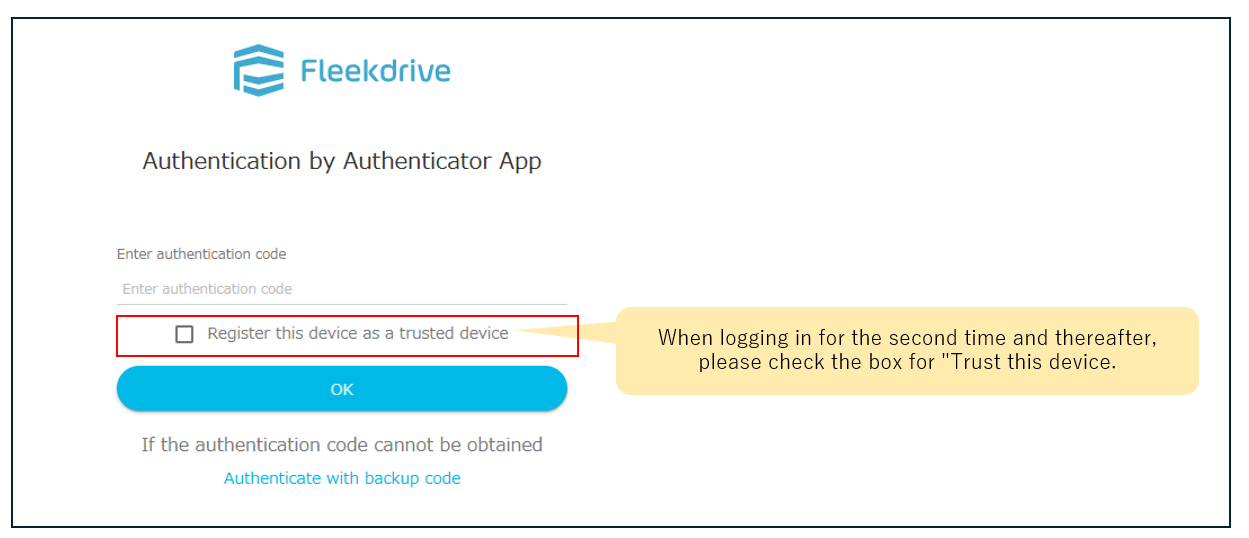
By registering your device as a “trusted device,” you can skip two-step verification at login.
When logging in for the second time and thereafter, please check the box for “Trust this device.”
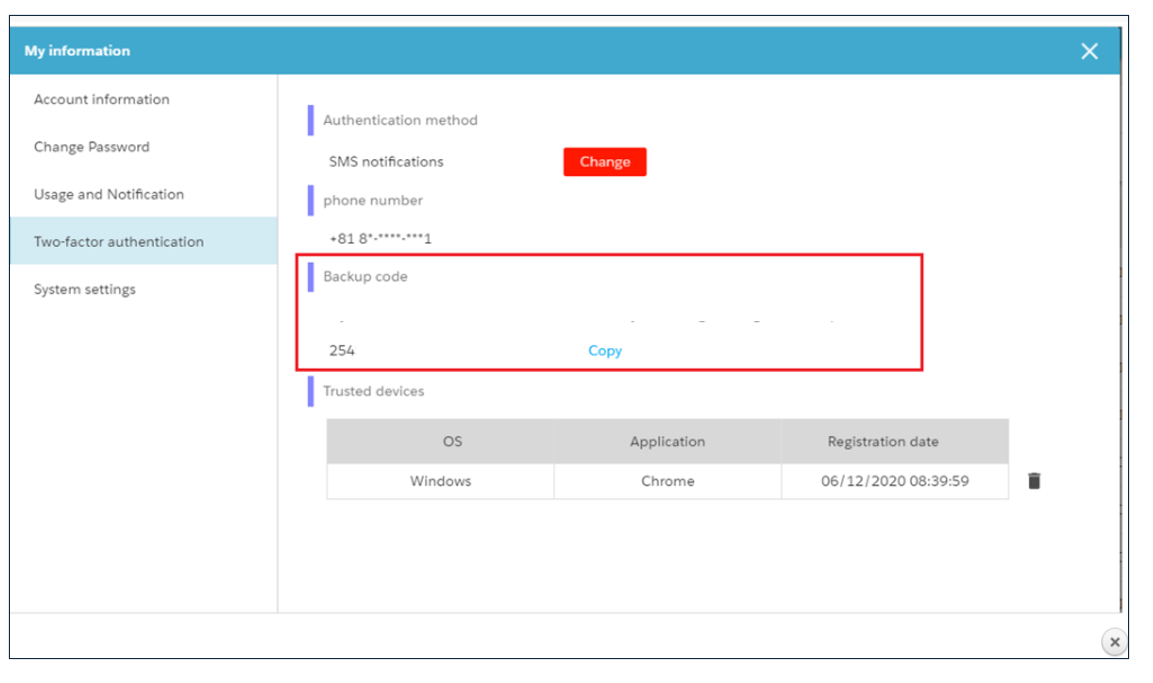
You can view your registered trusted devices by navigating to “My Profile” > “Two-Step Verification.”
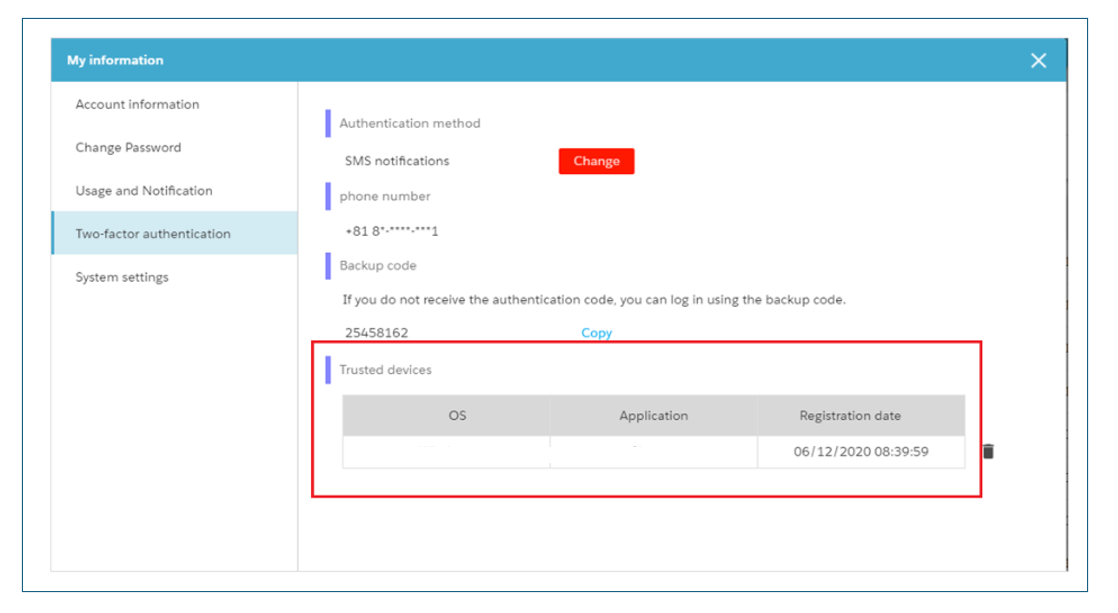
If a trusted device is deleted, you must enter the 6-digit verification code from your authenticator app again when logging in.
If verification fails (e.g., you cannot receive a verification code), you can also authenticate using the backup codes previously retrieved from “My Profile.”
Please note that each backup code will automatically change after a single use.
※Because backup codes can only be obtained while logged in, please make sure to retrieve and save them in advance.
Last Updated : 28 Jul 2026