
Deliver the files
Guide for delivering the files.
*There are usage restrictions depending on contract edition.
Select the file which you want to delivery and click on “Delivery”.
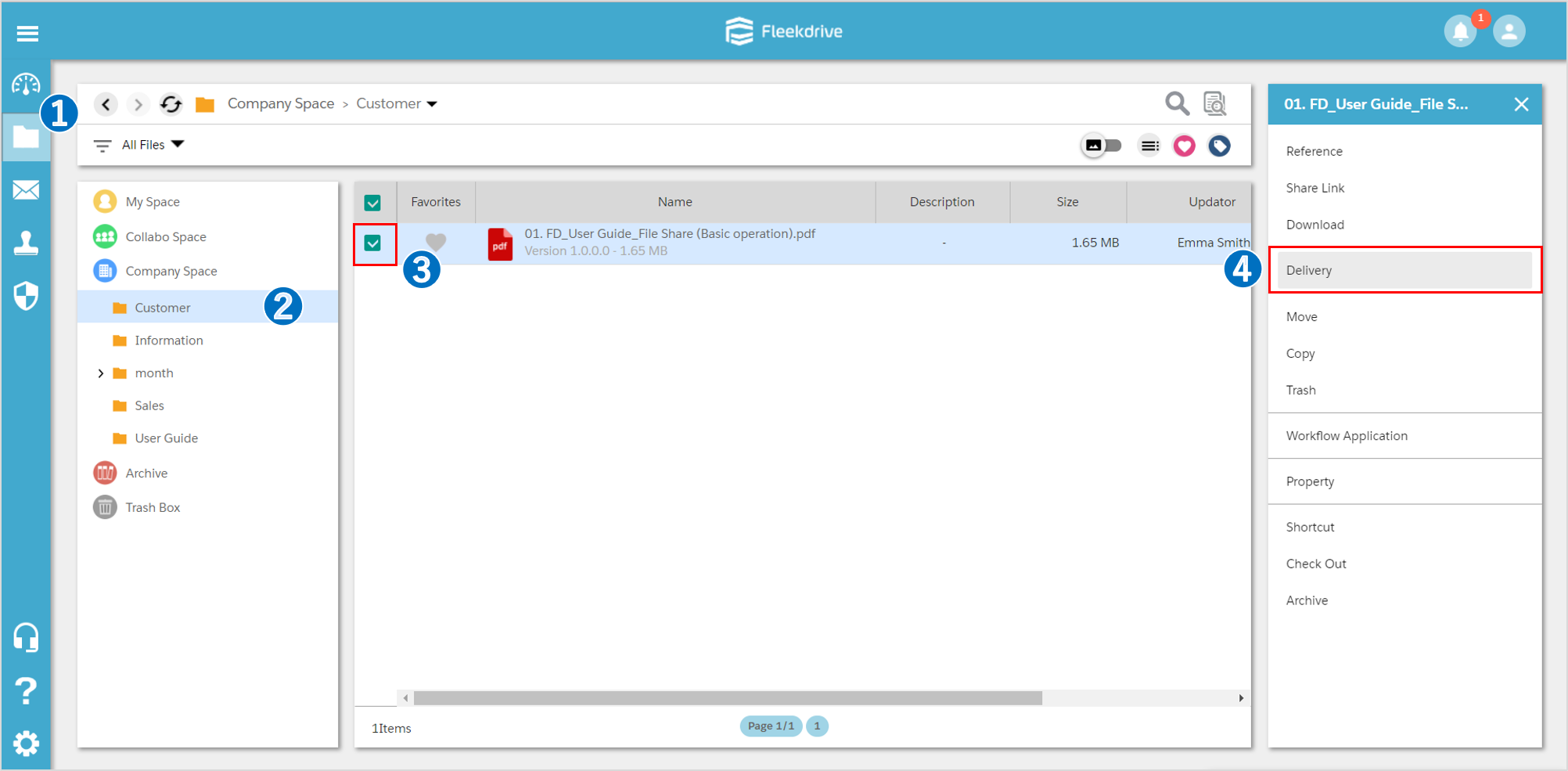
Delivery screen displays.
Confirm the contents of each icons and buttons at the screen.
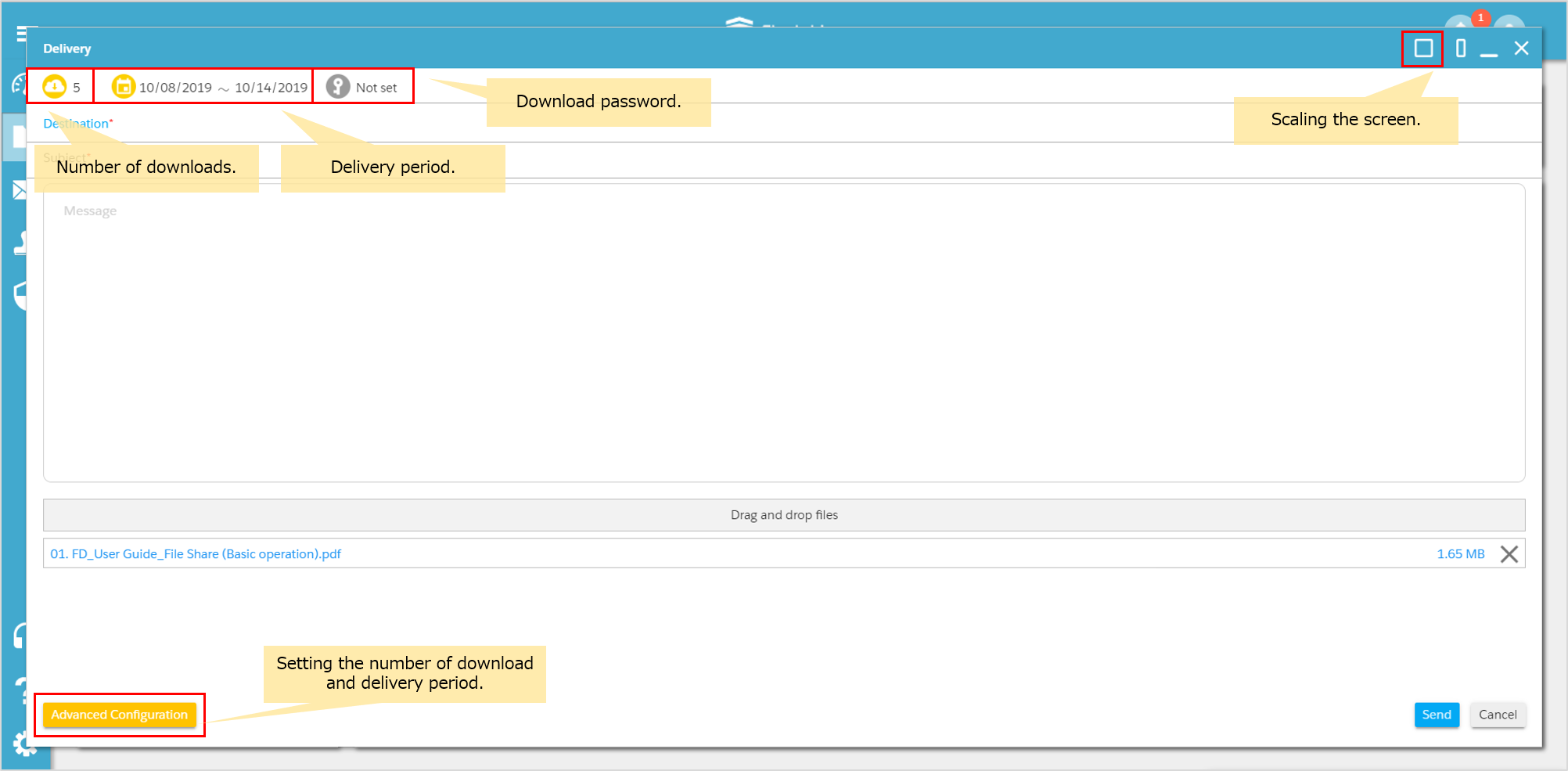
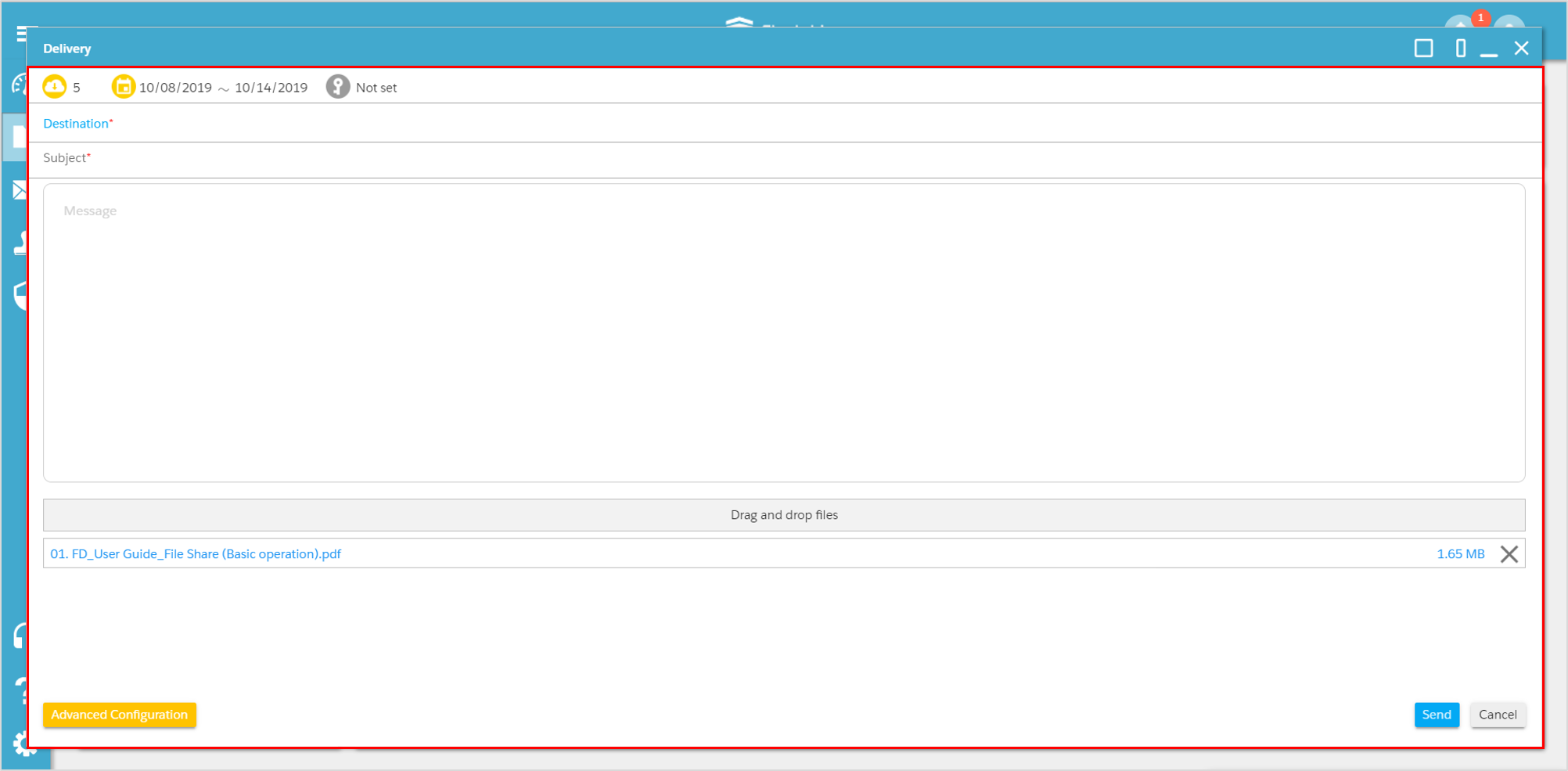
Enter the message and destination, click “Send”.
The destination can also be selected from the ADDRESS BOOK.
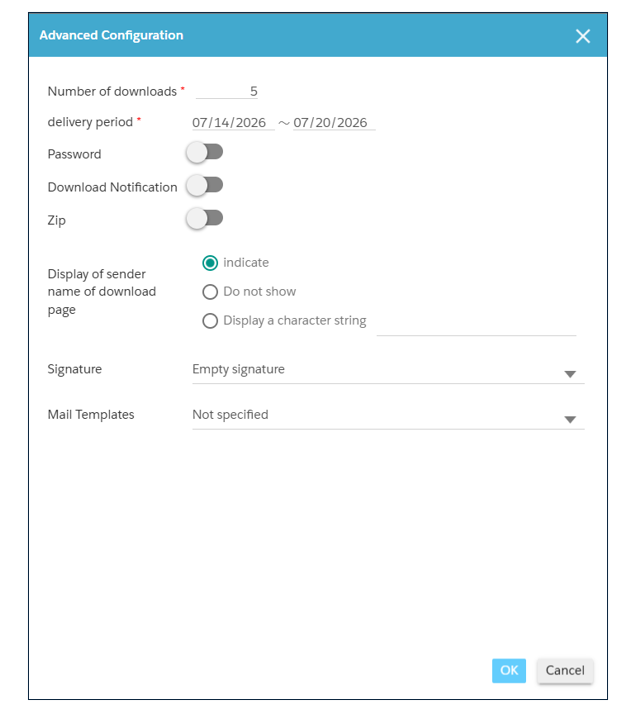
Click the “Advanced Settings” button to configure the following items:
・Number of downloads
・Delivery period
・Password
・Download Notification
・Zip
・Display of sender name of download page
・Signature
・Mail Templates
After configuring the settings, click the “OK” button to complete the setup.
[About Passwords]
Please refer to [here] for instructions on how to send the password to the user who executed the delivery (the sender).
[About Download Notifications]
When the “Download Notification” toggle is turned ON, a “File Delivery Download Notification” email will be sent to the user who executed the “File Delivery” the first time a recipient downloads the delivered file.
The details of the “File Delivery Download Notification” email are as follows:
Default Subject: 【Fleekdrive】Delivery Download Notification
To (Recipient Name): First and last name of the user who executed the file delivery
Downloading User: First and last name or email address of the downloading user
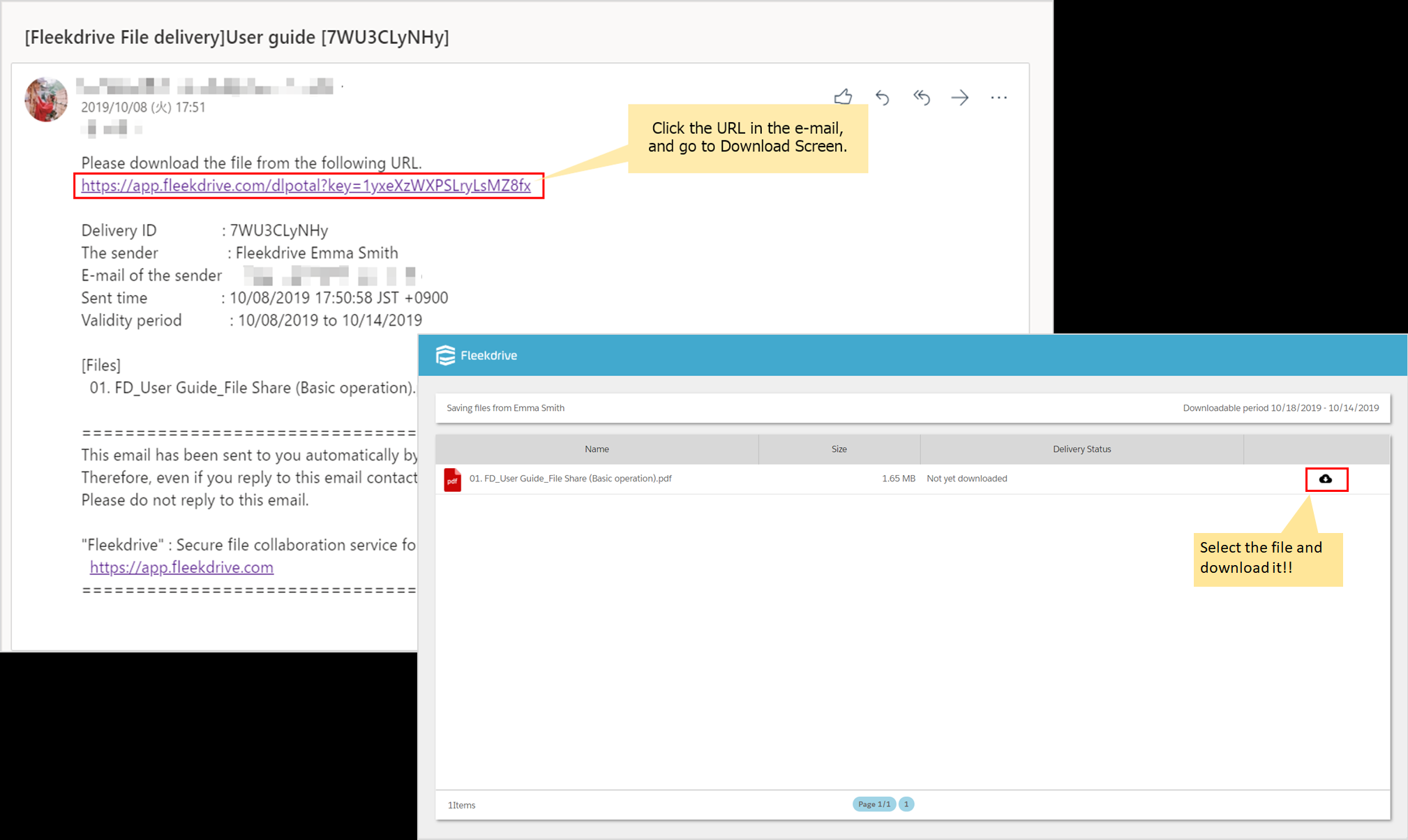
The user who received delivery files can click the URL in the e-mail, and download files from the download screen.
Last Updated : 28 Jul 2026