
Share URL that directly access files
Guide for creating a URL “Shared Link” that can directly access the file and sending the URL by e-mail.
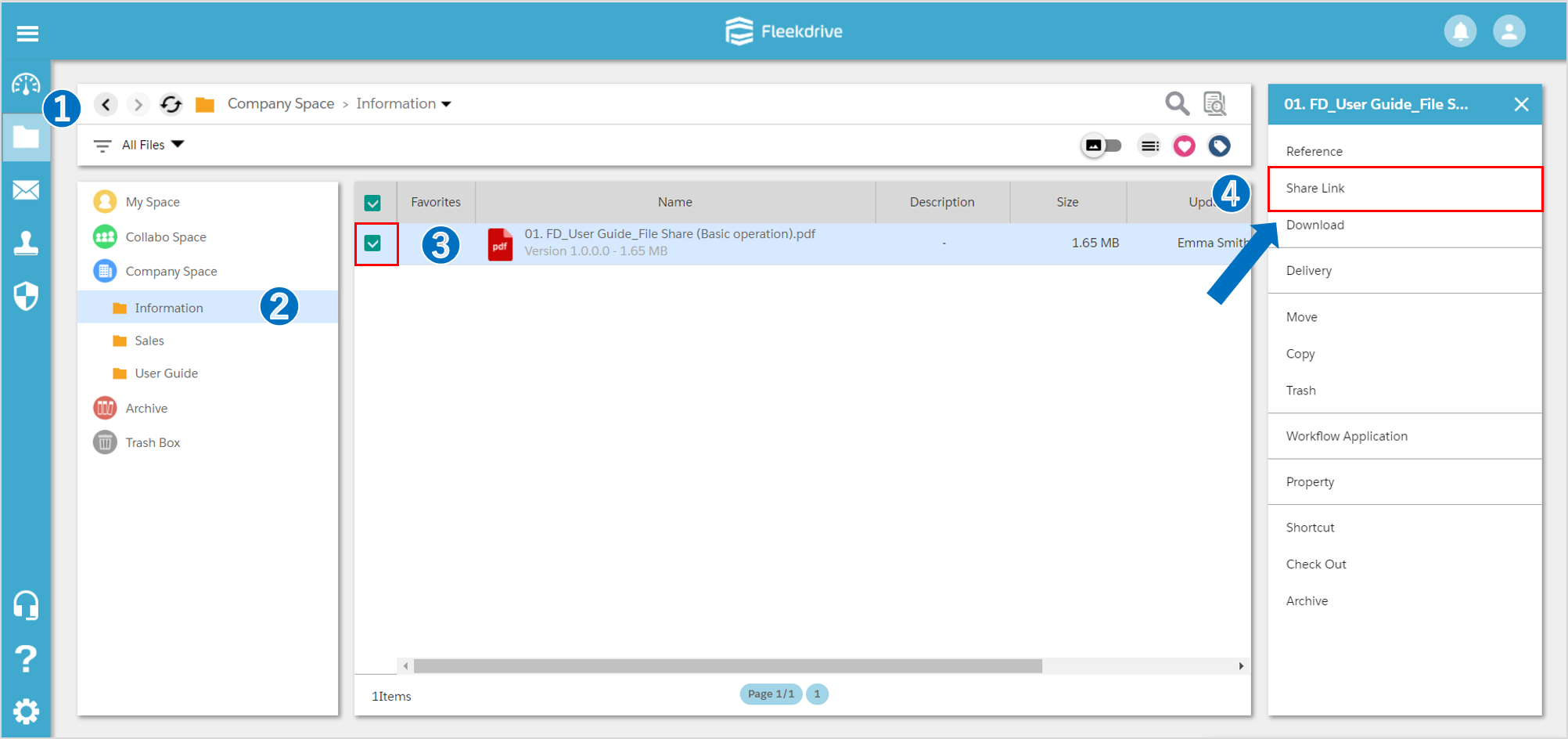
Select the file for which you want to create a shared link.
From the file share screen, check the target file after displaying the space where the file you want to create the shared link is stored.
Click “Share Link” displayed in the navigation on the right.
Configure the shared link
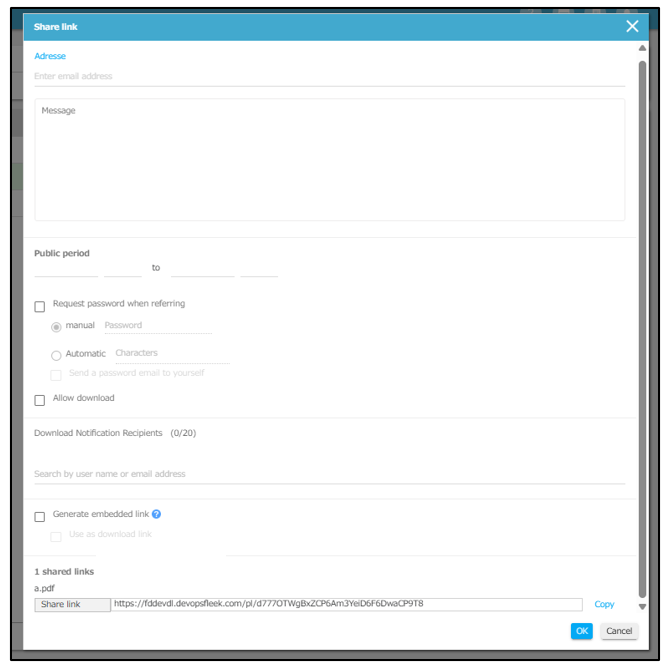
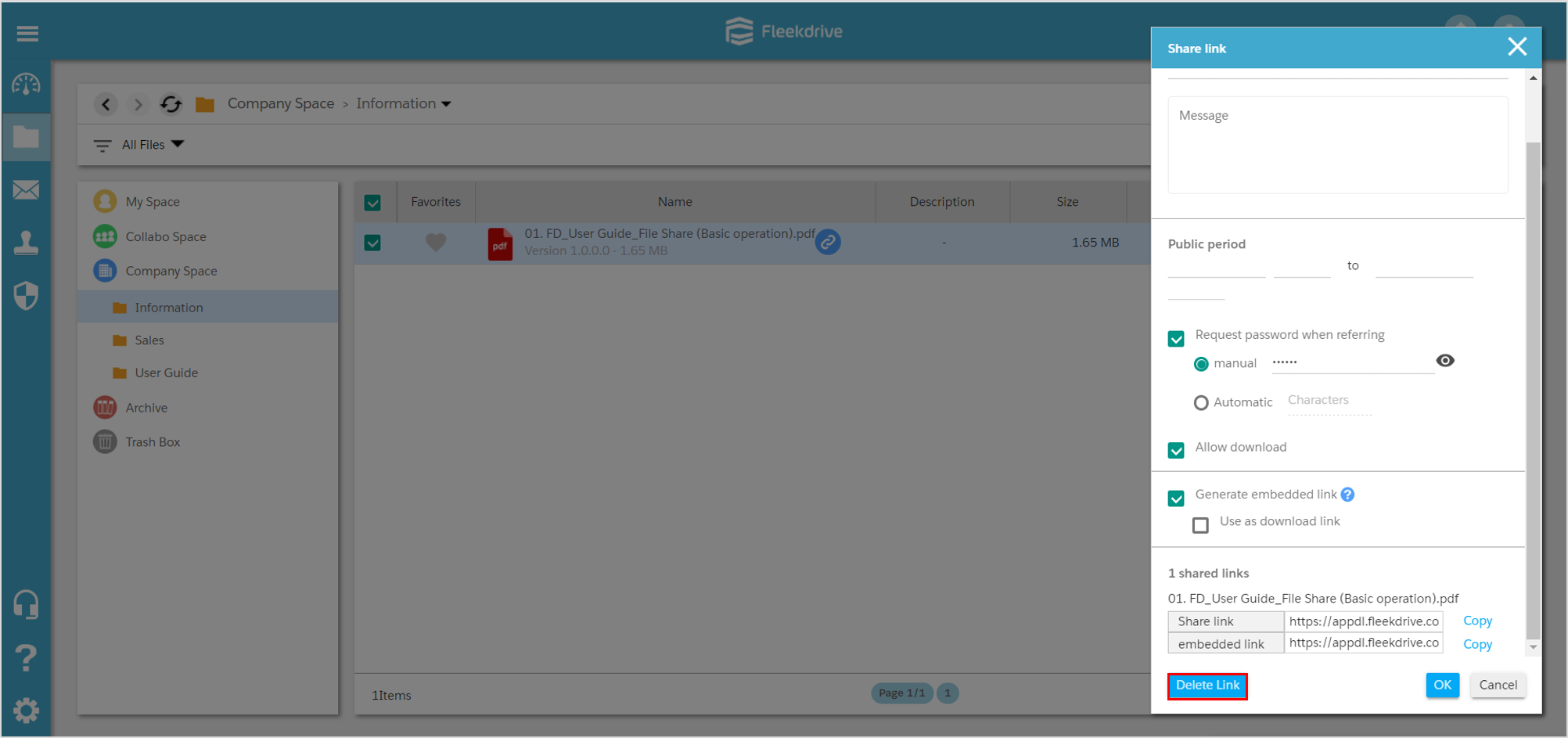
On the next screen, you can configure various settings related to the shared link.
[Configuration Items]
・Adresse
・Message
・Public period
・Request password when referring
・Allow download
・Download Notification Recipients
・Generate embedded link (*Generate link for download)
【Adresse】
To send a shared link notification email from the settings screen, enter the recipient’s email address and a message.
【Request password when referring】
When checked, a password will be required to access the shared file.
Manual: Please set any password of your choice.
Automatic: The system will automatically generate a password. Please set only the number of characters.
When “Send password email to myself” is checked, the password notification email will be sent only to the user who performed the file delivery operation. Please note that it will not be sent to the delivery destination (recipient).
If you accidentally check “Send password email to myself,” the user who performed the file delivery operation should receive the password and then provide it to the recipient via a non-email method, such as SMS or a phone call.
For details, please check here.
【Download Notification Recipients】
When a shared recipient of the “shared link” downloads the file, a “Shared Link Download Notification” will be sent to the “specified user.”
The “specified user” can be selected from the shared users of the space where the shared file is stored. Only “users” can be set as notification destinations. “Groups” cannot be set as notification destinations. The maximum number of notification destinations is 20.
- A download notification will be sent “every time a file is downloaded” from the shared link.
Please note that this does not apply “only to the first download.” - File downloads from embedded links are not eligible for download notifications.
【Generate embedded link】
When “Generate embedded link” is checked, an “embedded link” will be generated in addition to the “shared link.”
Difference between shared links and embedded links
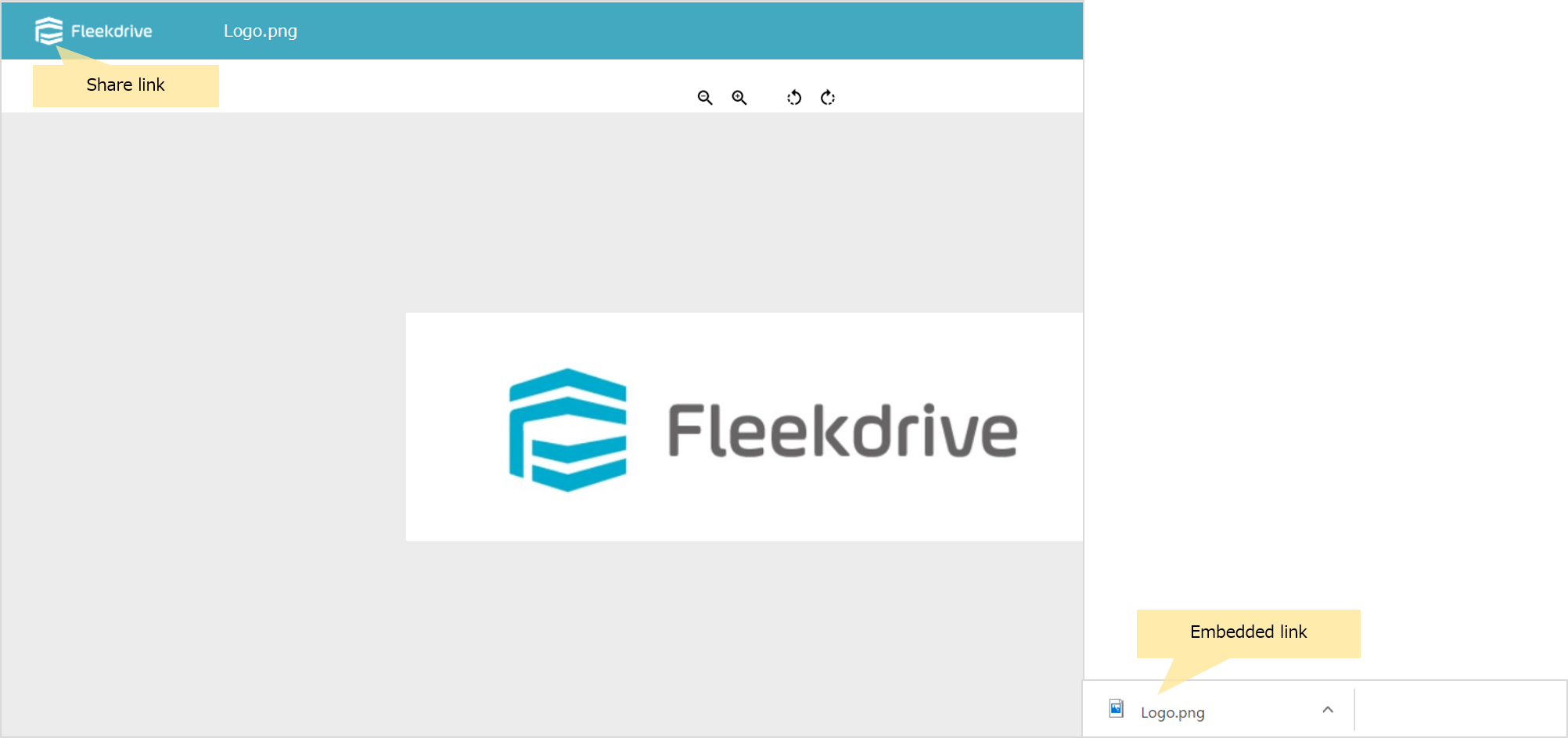
Shared Link
When accessing a file via a shared link, it will be displayed in the Fleekdrive viewer.
Embedded Link
When accessing an embedded link, you will directly access and download the target file.
It is useful if you want to display files stored in Fleekdrive on a website, etc.
*Note: When accessing a file via an embedding link, the file will be displayed with a name different from the original file.
If you want to display it with the same name as the original file, check “Generate link for download” to allow downloading and view it locally.
*Note: Please be aware that accessing an embedded link will not leave an audit trail.
*Note: File downloads from embedded links are not eligible for download notifications.
Confirm that the shared link is set.
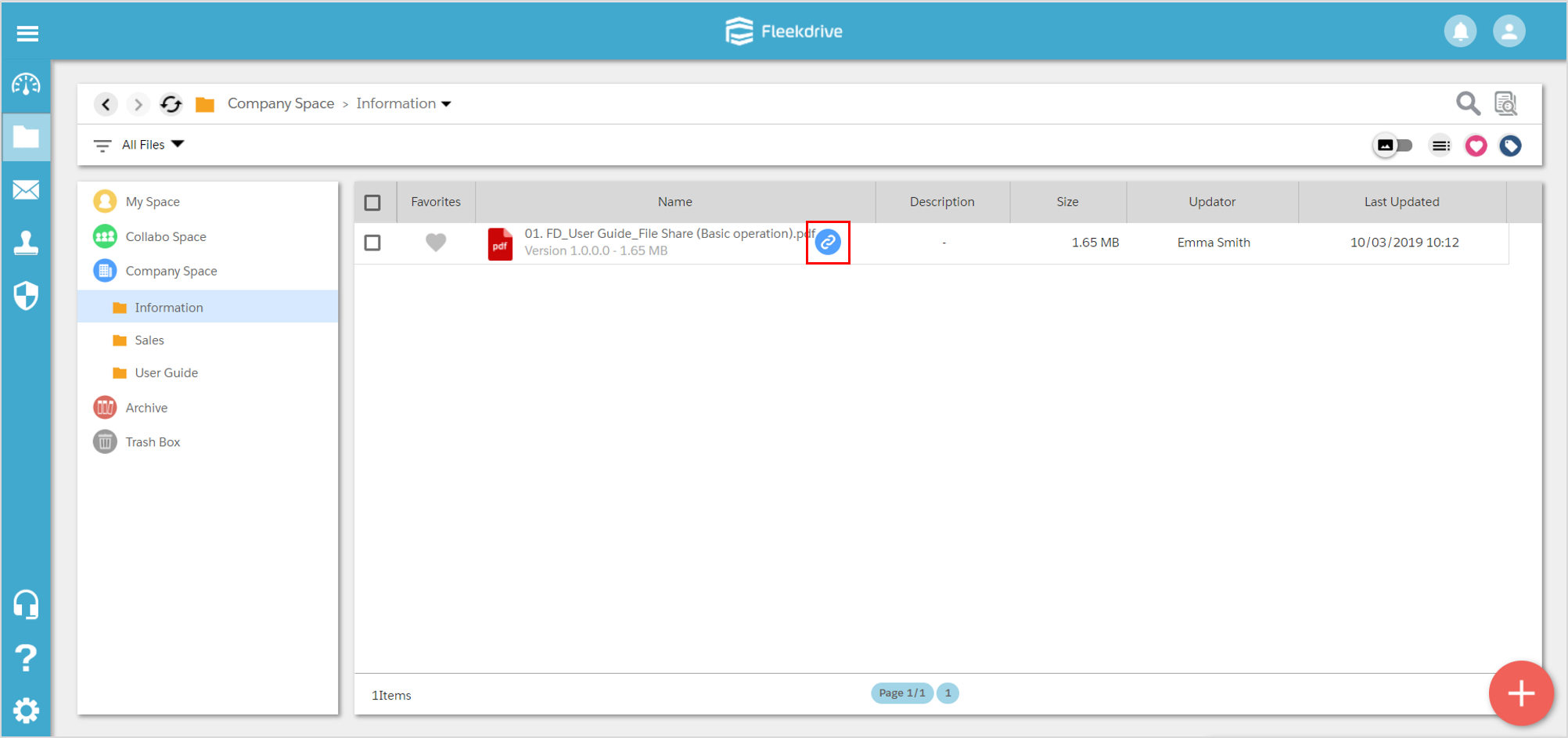
When the setting of the shared link is completed, the link icon is displayed.
To confirm or change the setting contents, click the icon to display the setting screen.
Confirm notification e-mail.
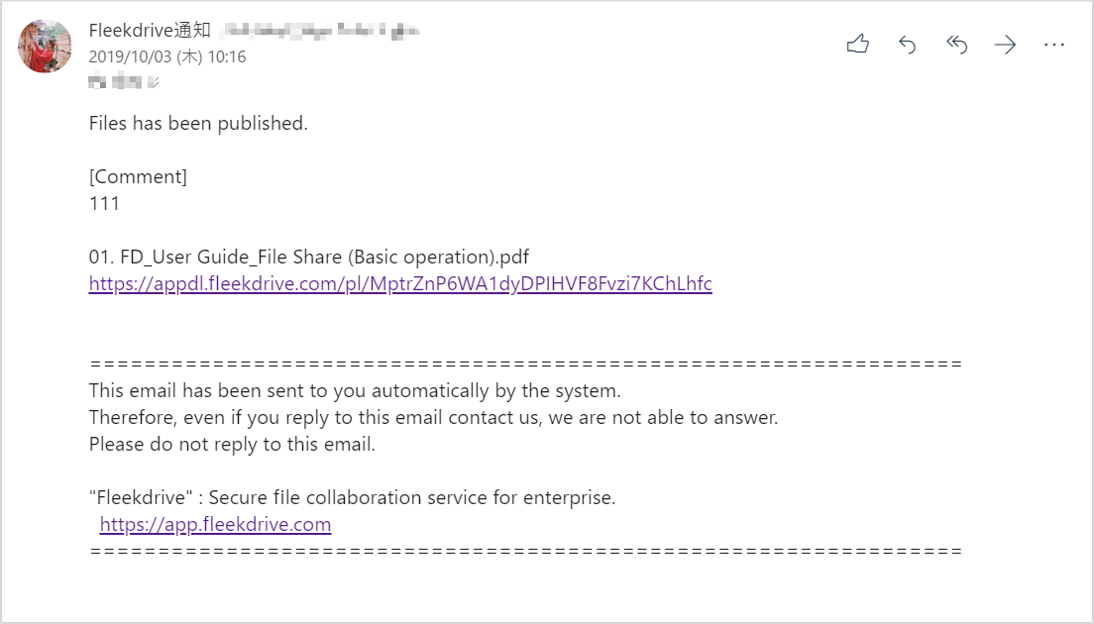
When sending a notification mail, a notification e-mail like an image will be sent to the destination. If you set a password, you will receive a separate password notification e-mail.
Browse the file from the shared link.
Clicking on the URL of the notification e-mail will show Fleekdrive’s viewer.
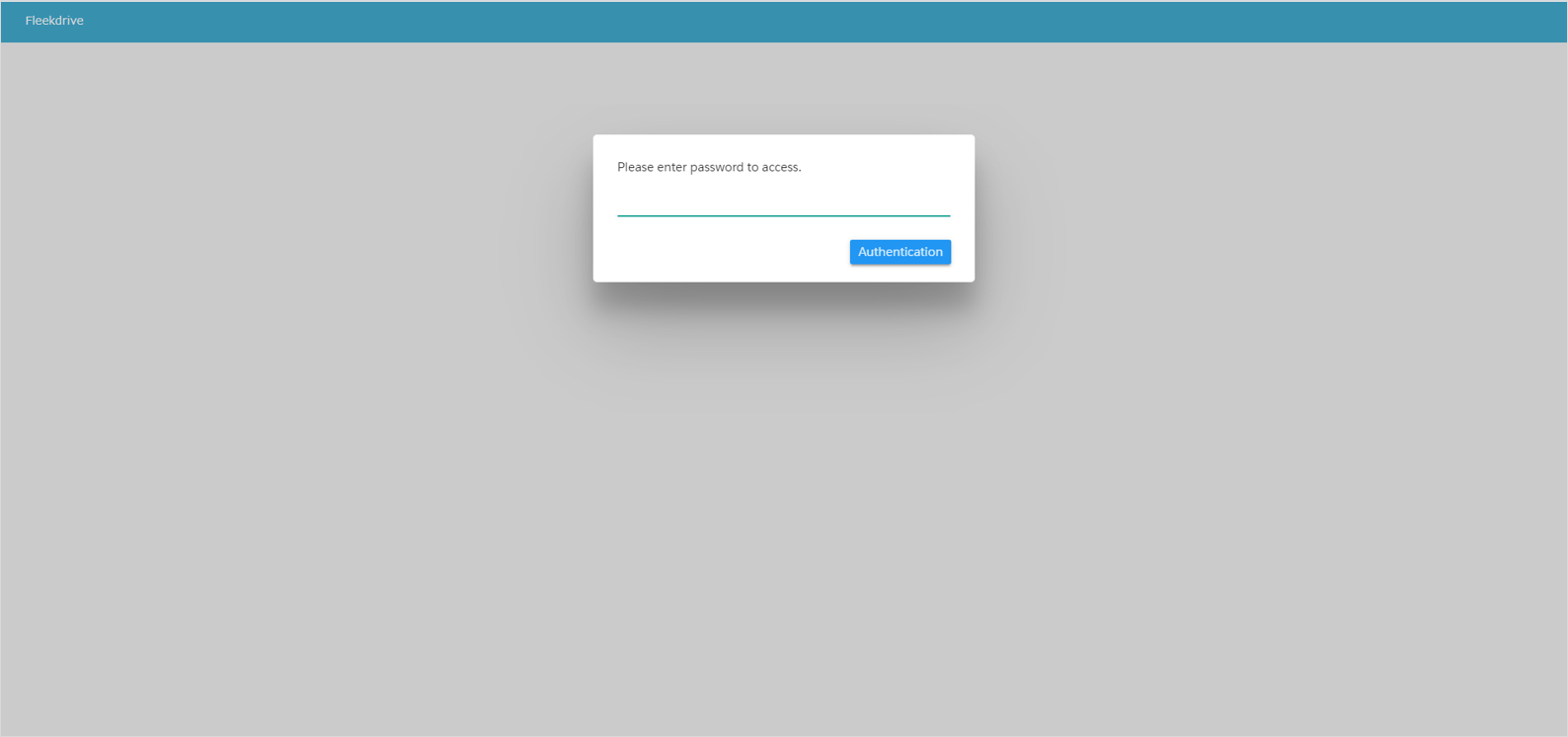
In the case of the setting requesting the password, you enter the password and click the “Authentication” button.
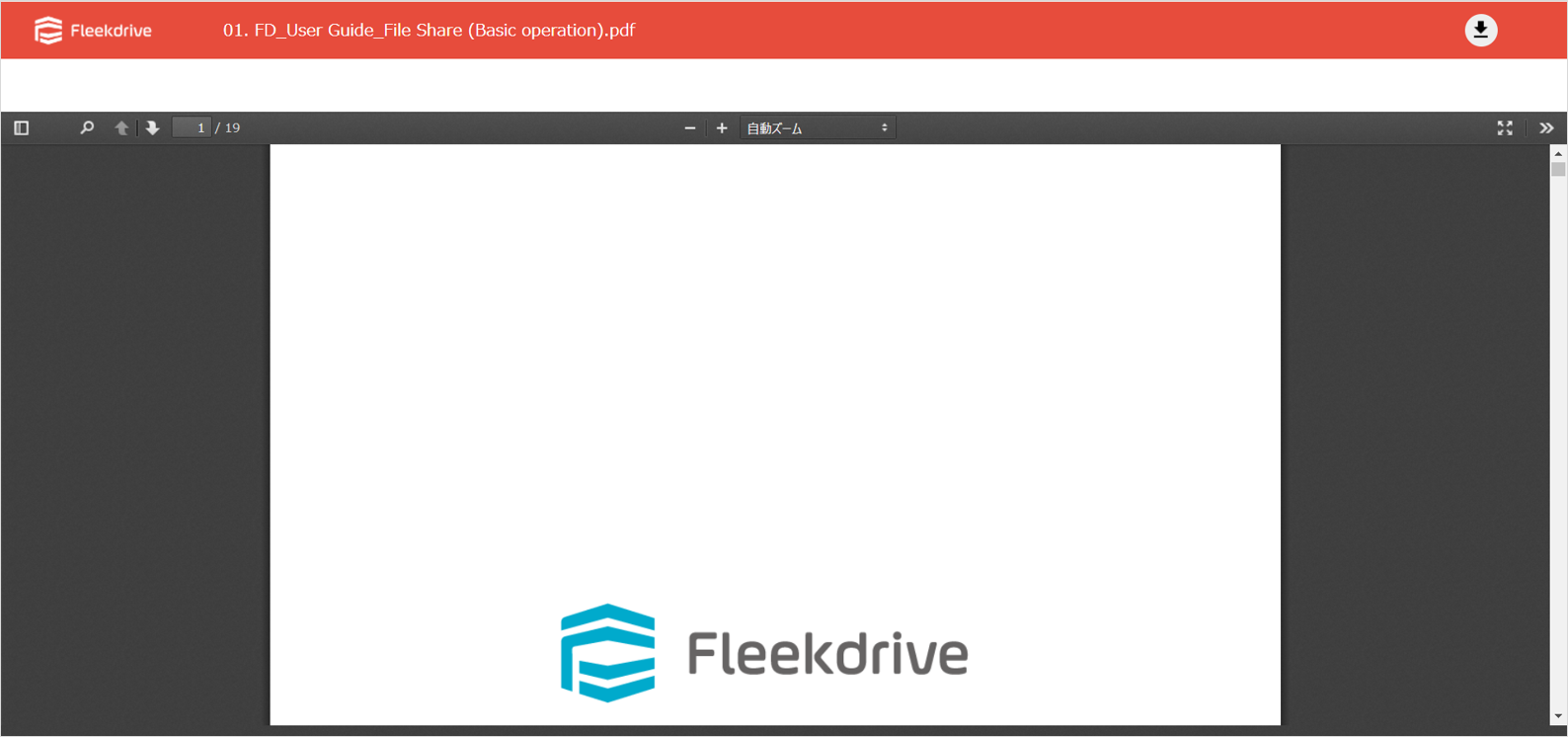
The viewer will start up and you can browse the file. If download is permitted, you can download the file by clicking the  button at the upper right of the screen.
Stop publishing the shared link.
To stop browsing from the shared link, display the share link setting screen and click the “Delete Link” button. After deleting the shared link, you cannot access from the shared link.
NOTE: The difference between Shared link and Embedded link
When accessing the file with shared link, it's displayed with Fleekdrive viewer.
On the other hand, when accessing the embedded link, access directly the target file and download.Embedded link is useful when displaying a file saved in Fleekdrive with Web site.
Last Updated : 28 Jul 2026