
PDF Comparison (Show Differences)
Here is a guide on how to compare PDF files and view the differences.
This feature allows you to compare (check for differences between) PDF files uploaded to Fleekdrive in the following two ways.
1:Comparing New and Old Versions
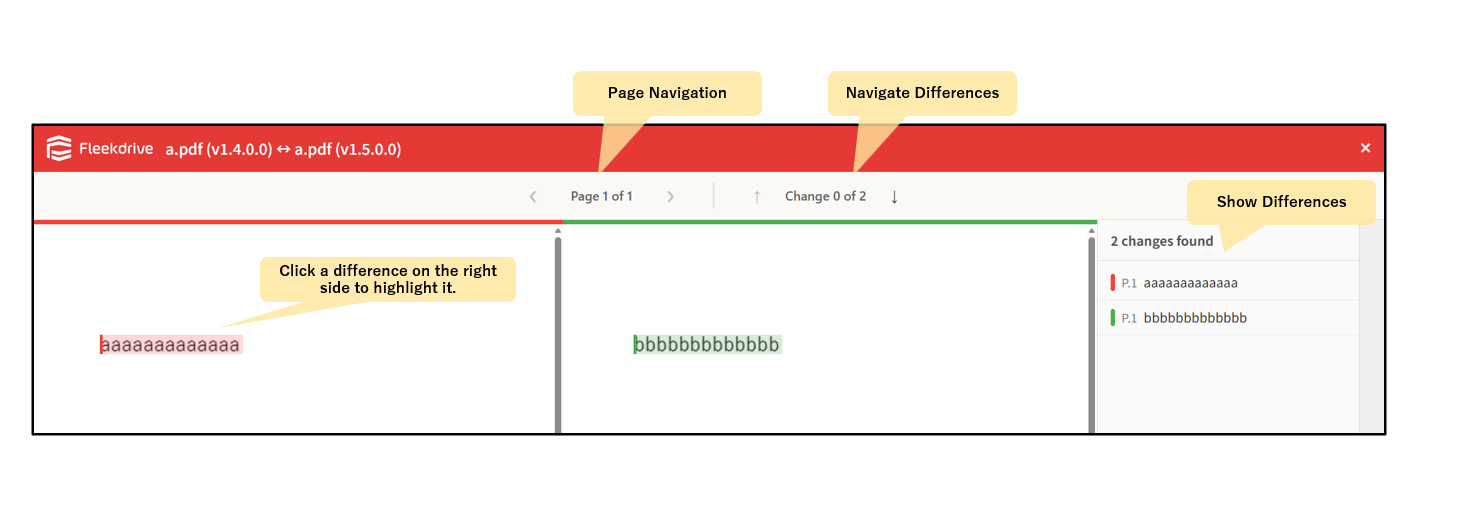
For PDF files that have been updated to a new version, this feature compares the latest version with the immediately preceding version and displays the differences.
*What is a “Version Up” (File Update)?
This refers to uploading a file with the exact same name as an existing file (overwriting it), which automatically increases (counts up) the file’s version number.
2:Comparing Different Files
Compares two different files and displays the differences.
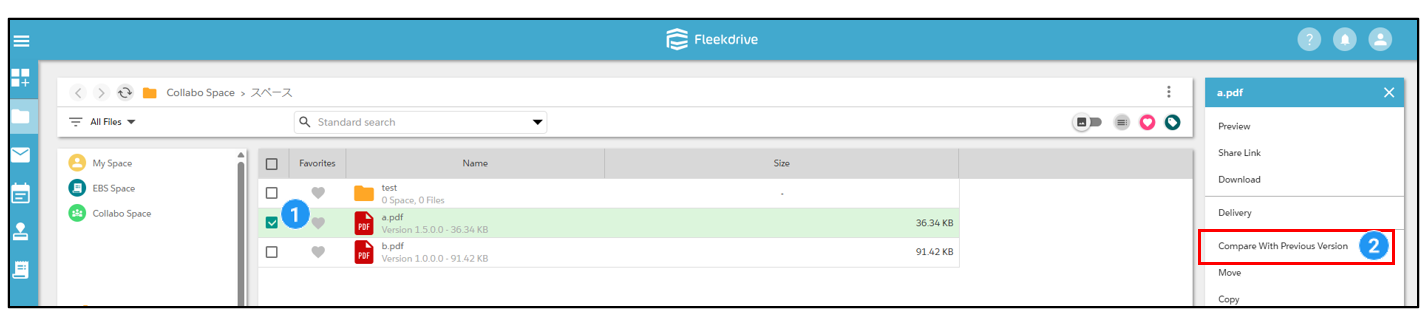
Select the check box for the PDF file you want to compare, then select “Compare with Previous Version.”
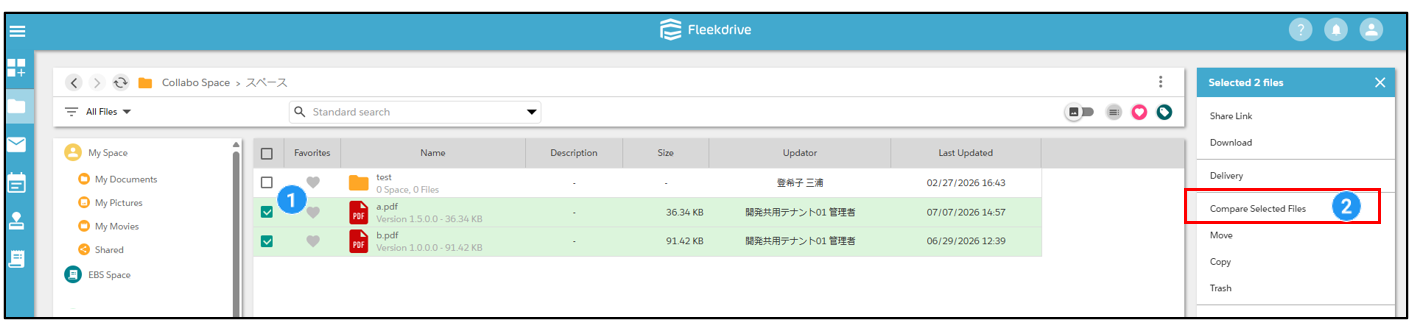
Select the check box for the PDF files you want to compare, then select “Compare Selected Files.”
You can compare up to two files at a time.
Please note that the comparison applies only to text; visual elements (images/diagrams) cannot be compared.
Additionally, PDF files from which text cannot be extracted are not supported by this feature.
【Details of PDF files from which text cannot be extracted are as follows:】
-PDFs converted from paper documents using multifunction printers or scanners
(Because the text is saved as an image/photo)
-PDFs created with design software like Adobe Illustrator
(Because the text has been converted into outlines/shapes)
-Secured or password-protected PDFs
(Because restrictions or locks, such as “copying text prohibited,” are applied)
【How to identify PDF files from which text cannot be extracted】
You can check whether your PDF file falls under any of the above conditions by using the following method:
-Text cannot be dragged (selected) and copied/pasted using a mouse.
-Keywords do not hit or show up when searching with “Ctrl + F” (“Cmd + F” on Mac).
Last Updated : 28 Jul 2026